
 +44 20 3695 6722
 Sign in
The Attacks section is located below the table of protection objects on your service page. Open the product in the Control Panel.
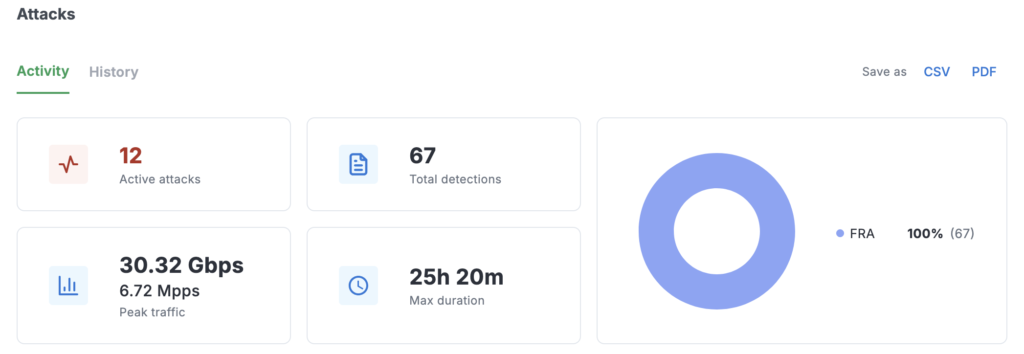
The section displays attacks on your network (L3): those happening right now (on the Activity tab) and completed ones (on the History tab).
The buttons for exporting reports Save as CSV / PDF are located in the upper right corner of the section.
For each attack, the following is shown:
- target (IP address or subnet);
- peak traffic in BPS and PPS;
- number of detections;
- detector location;
- start time and duration.
For completed attacks, the end time is also shown.
Above the list there is summary statistics: the number of attacks and detections, maximum peak traffic, maximum duration, and the distribution of detections by detector locations.
On the page of an attack on a subnet, it is shown how many addresses within it are attacked. Each attack consists of individual detections — detector triggers based on rules.
“Activity” Tab
The tab displays attacks happening right now.
The statistics show:
- the number of active attacks;
- the total number of detections;
- the maximum peak traffic in BPS and PPS simultaneously;
- the maximum duration of the current attack;
- a diagram of the distribution of detections by detector locations (for example, FRA).
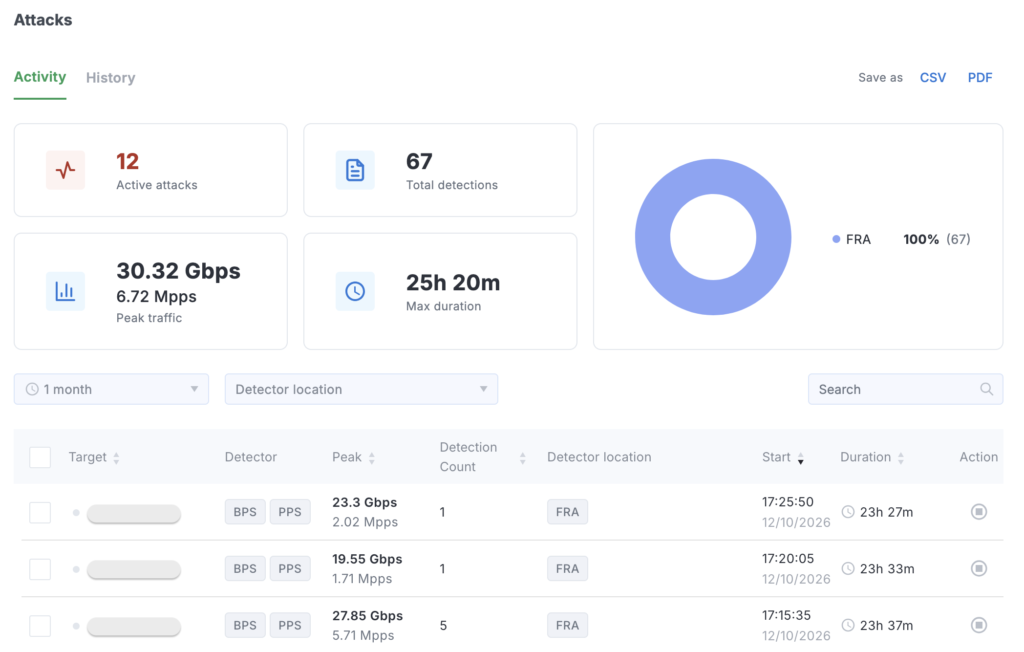
For each attack, the following are shown:
- target (IP address or subnet);
- detector type (BPS, PPS);
- peak traffic;
- number of detections;
- detector location;
- start time and current duration.
The following tools are available for working with the list:
- search (by occurrence, valid only within the current tab);
- filter by detector location;
- period selection in the calendar (for example, “1 month”, also a custom interval);
- sorting by columns and page navigation.
How to stop filtering
If you want to stop filtering traffic for one of the attacks, click the “Stop filtering” button in its row. The action takes on average 2-3 minutes — during this time, a clock indicator is displayed in the attack row. After that, the attack disappears from the Activity tab and will be displayed only in History. A pop-up notification informs you that filtering is finishing.

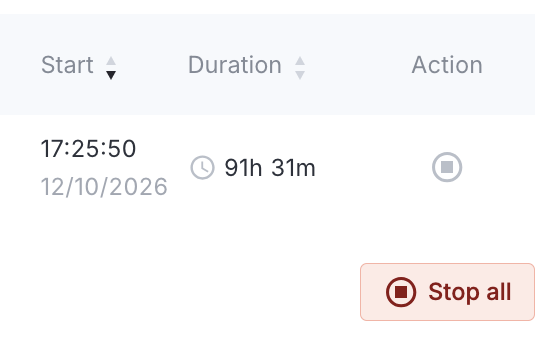
To completely stop traffic scrubbing, click the red Stop all button at the bottom of the list.
The action to stop filtering is recorded in the Logs section and is stored there without a time limit.
Individual Attack Page
Open any attack from the list to get the full picture and manage protection in a targeted way.
- The traffic graph at the top — you can switch between BPS and PPS. On the Traffic details tab, the structure of the attacking traffic is displayed: distribution by attributes, top IPs, top protocols.
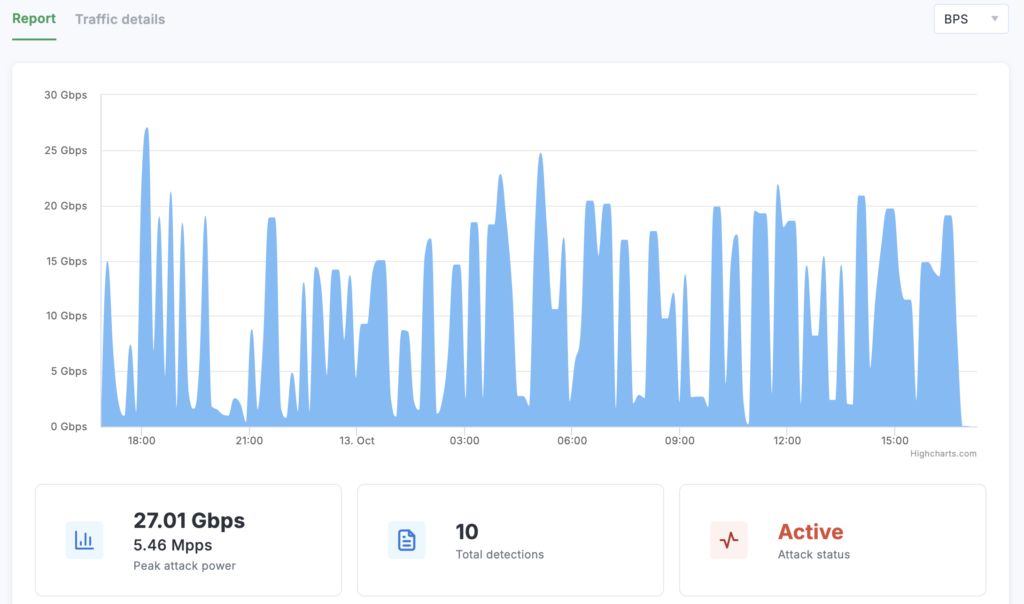
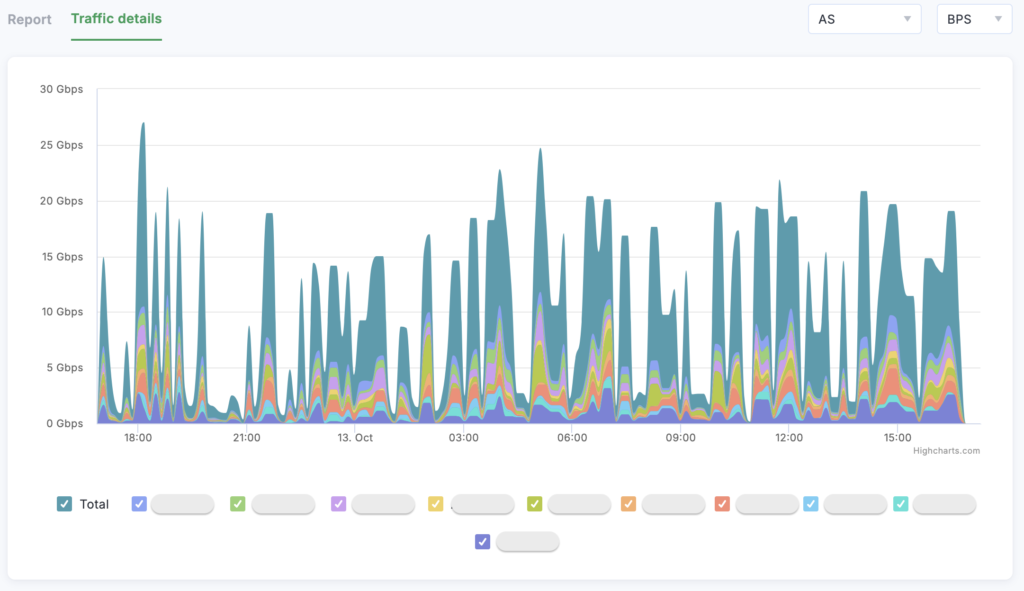
- Key metrics: peak power, total number of detections, current status (“Active” attack or “Completed”).

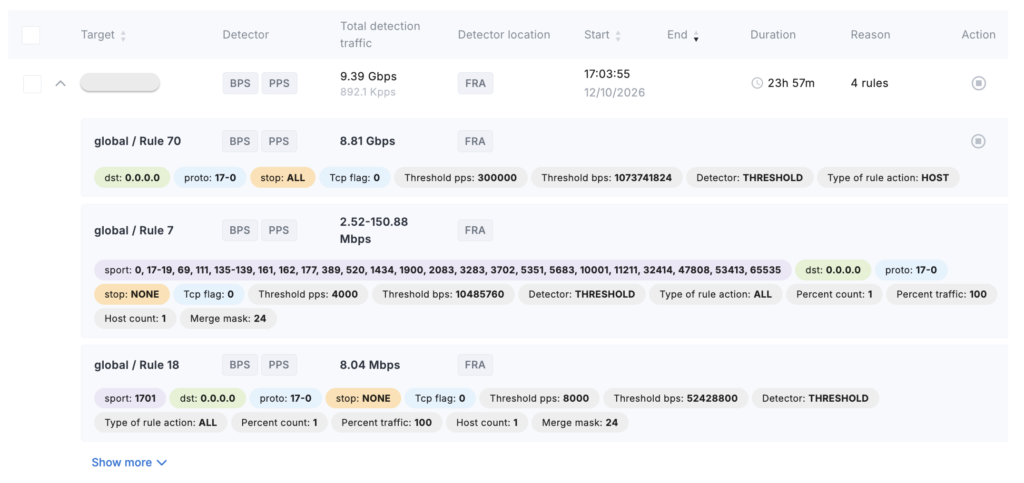
- Detection summary — which objects are affected, by which detector the event was recorded, traffic volume, trigger location, start and end time.
- Expanding a detection row shows the triggered rules and their parameters.
“History” Tab
All completed attacks are stored here — you can return to any of them and analyze what happened.
The format of the section is similar to the Activity tab, but here the end time and its final duration are displayed for each attack.
The statistics at the top show the total number of attacks, the total number of detections, maximum peak traffic, maximum duration, and the distribution of detections by locations.
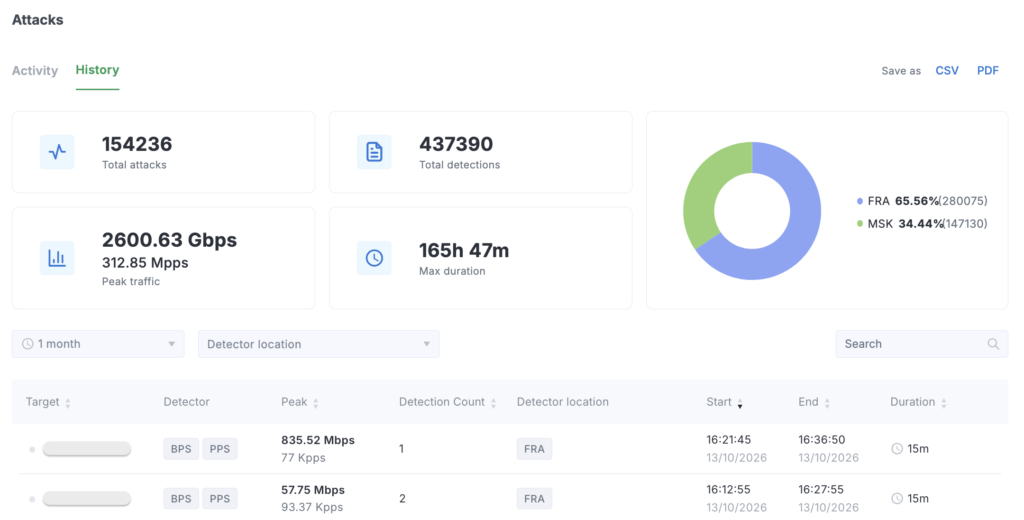
Filters are provided: period selection, search by object, filter by detector locations.
